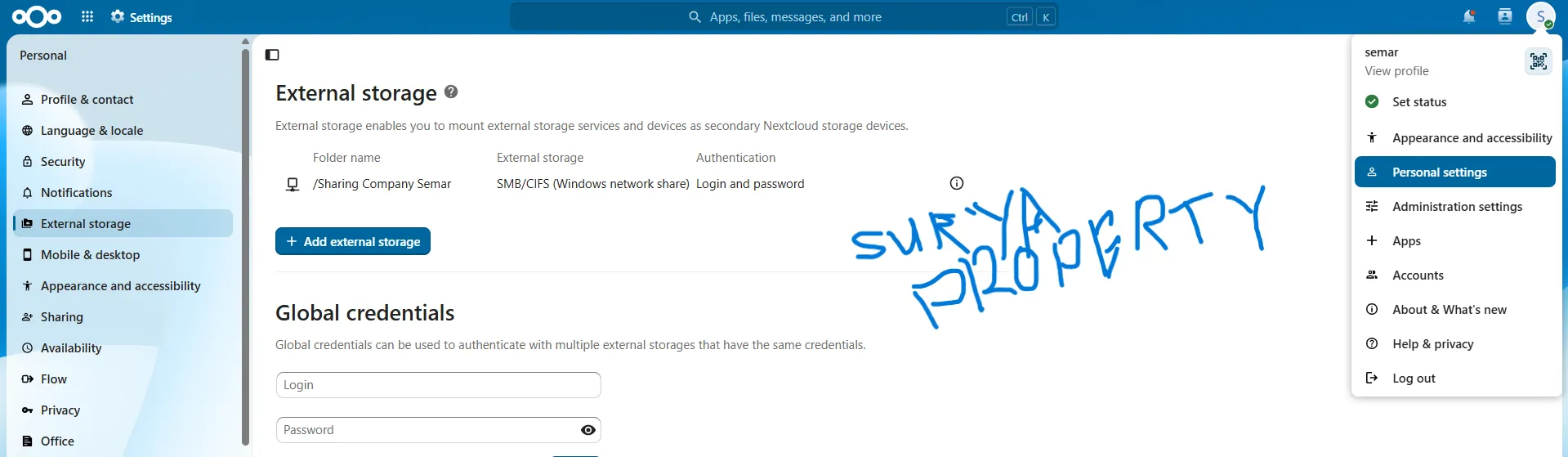
# How to Connect Nextcloud to a Windows Server Using SMB/CIFS External Storage
Nextcloud can provide a web interface for files that are physically stored on a Windows Server.
Architecture:
Windows Server
E:\CompanyShare
↓
SMB Share
↓
Nextcloud External Storage
↓
Nextcloud User
The files remain on the Windows Server while Nextcloud provides access through SMB.
## 1. Prerequisites
Make sure:
- Nextcloud is running.
- Windows Server provides an SMB Share.
- SMB users have been created.
- NTFS permissions are configured.
- Nextcloud can reach the SMB server.
- TCP port 445 is accessible.
- External Storage Support is available.
## 2. Enable External Storage Support
Log in as a Nextcloud administrator.
Go to:
Settings
→ Administration
→ Apps
Find:
External storage support
Enable it if it is not already enabled.
## 3. Open External Storage configuration
Go to:
Settings
→ Administration
→ External Storage
Add a new storage.
Select:
SMB/CIFS
## 4. Create the Finance mount
Example:
Folder name:
Finance
External storage:
SMB/CIFS
Host:
SERVER-IP
Share:
Company
Remote subfolder:
Finance
Authentication:
Username and password
Username:
SERVER-NAME\fin1
Password:
Finance user password
Restrict to:
Finance
Save the mount.
## 5. Create the Logistics mount
Use:
Folder name:
Logistik
Host:
SERVER-IP
Share:
Company
Remote subfolder:
Logistik
Authentication:
Username and password
Username:
SERVER-NAME\log1
Password:
Logistics user password
Restrict to:
Logistik
The mount will then only be available to members of the Logistics Nextcloud group.
## 6. Windows Groups and Nextcloud Groups are different
A Windows local group:
GG_Company_Logistik
is different from a Nextcloud group:
Logistik
They are not automatically synchronized.
When Windows uses local accounts/WORKGROUP, both identity systems must be configured separately.
## 7. Why group restrictions matter
Without restrictions, an SMB mount may be visible to users who should not access it.
For example:
/Logistik
→ Nextcloud Group: Logistik
This limits the mount to Logistics users.
## 8. Test from Nextcloud
Log in as a Logistics user.
The Logistik mount should be visible.
Create:
test-nextcloud.txt
Then verify the file on the Windows Server:
E:\CompanyShare\Logistik
The file should be visible there.
The reverse direction should also work.
## 9. Storage architecture
The files remain on:
Windows Server
→ CompanyShare
Nextcloud does not duplicate the files into its own storage.
The flow is:
User
↓
Nextcloud
↓
SMB/CIFS
↓
Windows Server
↓
NTFS Storage
## 10. Troubleshooting SMB connectivity
Check whether the Nextcloud environment has the SMB client:
smbclient --version
Then test:
smbclient //SERVER-IP/Company -U 'SERVER-NAME\username'
If the prompt appears:
smb: \>
run:
ls
If the folders are listed, the basic SMB connection is working.
## 11. Permission testing
Use the same credentials configured in Nextcloud.
For example:
Finance user → Finance
Logistics user → Logistics
If Windows NTFS denies access, Nextcloud cannot bypass that permission.
## 12. Conclusion
The integration consists of:
Windows User
↓
Windows Group
↓
NTFS Permission
↓
SMB Share
↓
Nextcloud External Storage
↓
Nextcloud Group Restriction
↓
User
This keeps Windows Server as the primary storage while Nextcloud acts as the file access interface.